L2Tag 2027 · free · for Windows 10 and 11
Every VLAN on every port, on one map.
L2Tag draws VLAN port maps of your switches: which VLANs each port carries, tagged or untagged, for every switch on a site. You fill them in by hand, for any brand of switch, and hand them over as a picture, a printout or a spreadsheet.
Free for personal and business use. No account, no sign-up, no installer needed.
What it does
One file per site
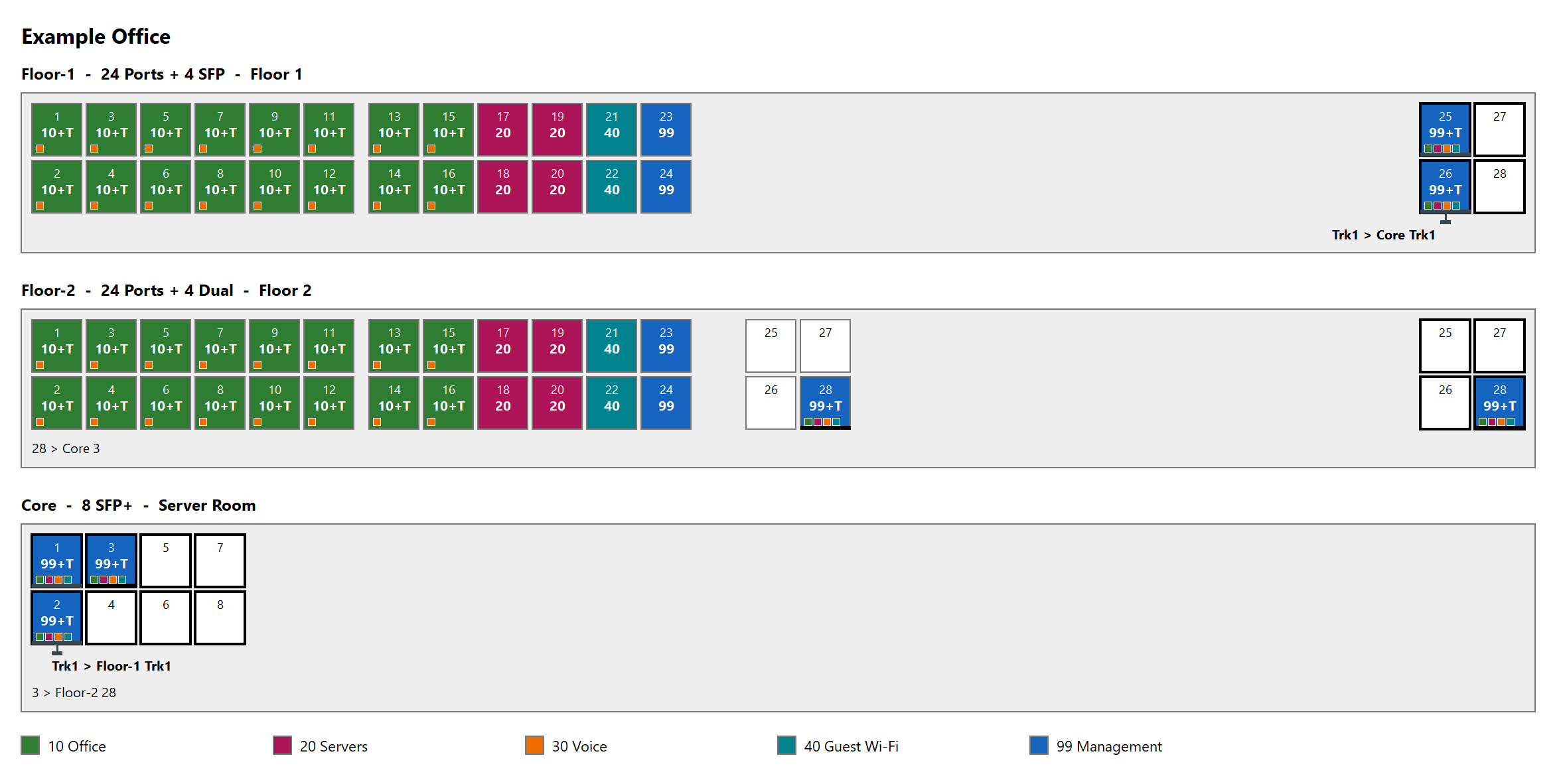
A site has one VLAN list and as many switches as you need. Each switch is drawn at the same 19" width, with its ports where they are on the front panel, numbered the way the switch numbers them.
Select ports, pick a VLAN
Click, drag or type a range such as 1-12,25, pick a VLAN and press U for untagged or T for tagged. Copy one port's VLANs to others, and undo anything. Ports can have a description and be marked disabled.
One strip per VLAN
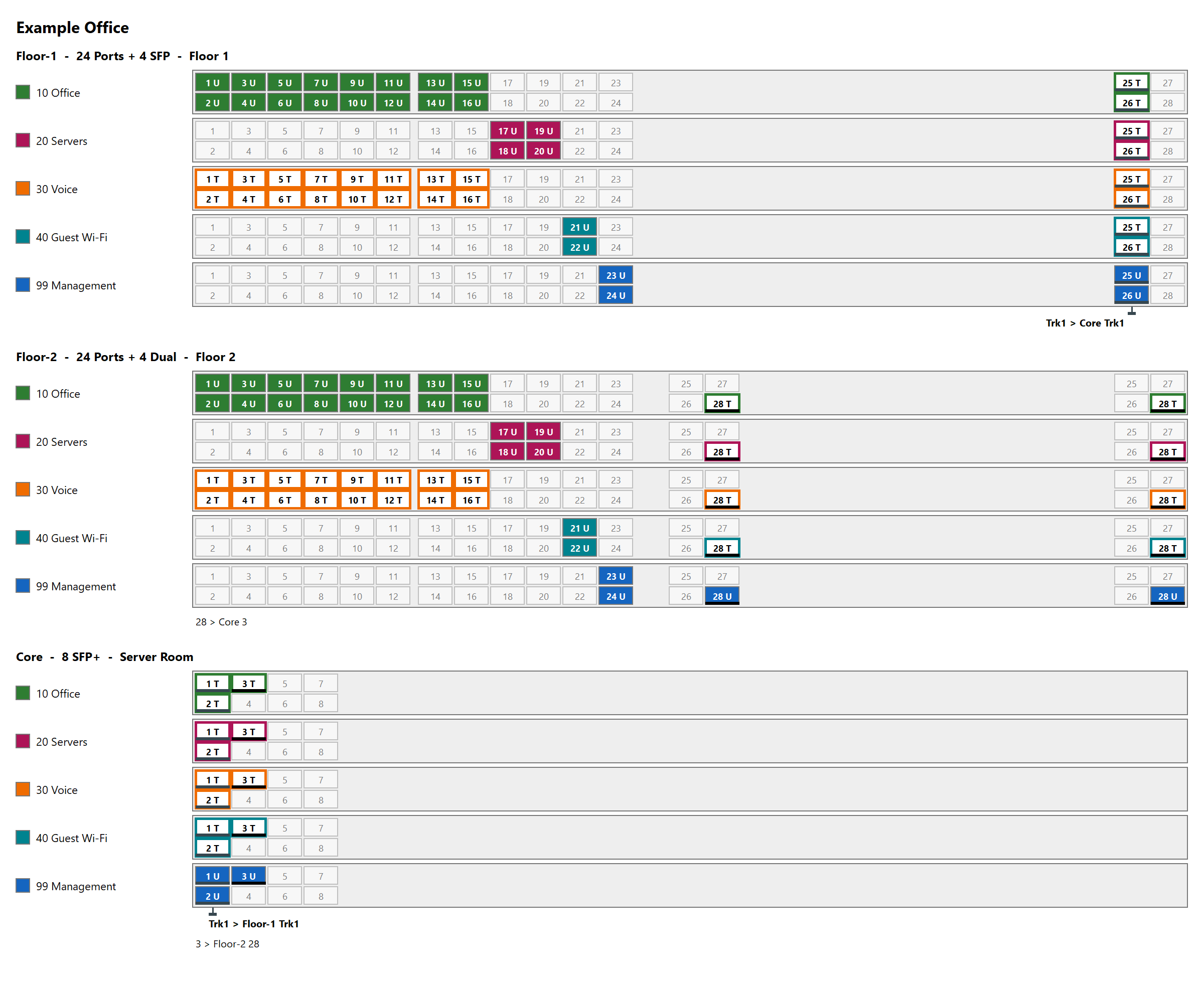
The VLAN Breakdown shows each switch once per VLAN, so you see at a glance where a VLAN lives, however many VLANs share a port.
LAGs and uplinks
Bundle ports into a LAG and every VLAN change reaches all its ports. Link LAGs and plain uplinks to the other switch, and the map shows where each one goes.
Finds what doesn't match
Check Map compares both ends of every link and reports a VLAN tagged on one side only or a different untagged VLAN. It also finds VLANs missing from the list and VLANs that are on only one switch.
Ready to hand over
Copy the map as an image, save it as PNG or SVG, print it, or save it as CSV for a spreadsheet. Output follows the view you are in, in light colors, whatever theme you work in.
How it looks
The same made-up site in both views, exactly as L2Tag exports it.
Good to know
What L2Tag does and doesn't do, and how it behaves on your computer.
It never touches your switches
L2Tag is a drawing and documentation tool. It has no connection to your network equipment.
- You fill in the map by hand: it doesn't read the configuration of a switch, and it doesn't change one.
- The map shows what you entered. Check Map finds contradictions inside the map, not differences with the real switch.
- It knows no brands or models. You set up a switch from a common template or your own layout, so it works for any brand.
Laying out a switch
Pick a common template, such as 24 ports + 4 SFP, or set your own layout under Custom:
- the number of ports, SFP uplinks and dual-personality ports, the rows, the gaps between port blocks and a label prefix such as
Gi1/0/; - odd ports on top, or numbering row by row;
- a label per port, for switches that number their ports differently.
A dual-personality port is one port with an RJ45 and an SFP socket. L2Tag draws both sockets, and a VLAN set on one shows on both.
LAGs and uplinks
A LAG counts as one unit: a VLAN change on any of its ports reaches all of them, and selecting one port selects the LAG. Plain uplinks link one port to one port on another switch.
- The two ends of a link stay separate, as they are on real switches. L2Tag doesn't copy VLANs across; Check Map reports a difference.
- A link goes from LAG to LAG or from port to port.
Portable or installed
L2Tag is one signed program file. Start it from anywhere, a USB stick or your Downloads folder, and it runs. If you want it in the Start menu, choose Install L2Tag... in its menu: it copies itself to your user profile, adds a Start menu entry and an entry in Settings > Apps to uninstall it. No administrator rights are needed.
- Maps are
.l2tagfiles you save where you like. Settings are kept in%APPDATA%\L2Tag. - Uninstalling never removes your maps.
- To update an installed L2Tag, run the new version and choose Update Installed L2Tag....
- For a rollout:
l2tag.exe --install --quietinstalls without any window,--uninstall --quietremoves it again; the exit code is 0 on success.
Update check
L2Tag contacts guilderworks.com only to check for updates, and only if you allow it. It asks once, at first start, and you can change your answer in Check for Updates.
- The check downloads a public list of versions and compares it on your computer. Nothing about you, your computer or your maps is sent. As with any web request, the server sees the IP address the request comes from.
- It runs at most once a day. L2Tag never downloads or installs anything by itself; when there is a newer version, it opens a window that links to the updates page.
- For a rollout, an administrator can answer the question in advance by setting the value
UpdateChecktoonoroffunderHKCU\Software\GuilderWorks\l2tag.
Privacy
L2Tag has no account, no telemetry and no activation. Your maps stay on your computer. The only contact with guilderworks.com is the update check above, if you allow it.
Details are in the privacy statement.
Download
L2Tag is free, for personal and business use, on as many computers as you like. You may pass on the unmodified download to others.
L2Tag 2027.0.1 for Windows 10 and 11, 64-bit. One file, code-signed by GuilderWorks. Its size and SHA-256 checksum are on the updates page.
Before downloading, please read the GuilderWorks Freeware License; you can save a copy from that page. L2Tag shows the license again when it first starts, and asks you to accept it.
Signed by GuilderWorks. Windows may still show a SmartScreen warning for a while after a new release, until enough people have run it: choose More info > Run anyway.
Requirements and support
Requirements
- Windows 10 (version 2004 or later) or Windows 11, 64-bit.
- No administrator rights, no installer, no service.
- Runs in Remote Desktop sessions and virtual machines; no graphics card needed.
L2Tag 2027
Supports Windows 10 and Windows 11 as released up to 31 December 2027. Security fixes for this release line until 31 December 2031; like every version of L2Tag, they are free.
Questions or problems: support@guilderworks.com. We read every message and help where we can. All releases and security fixes are listed on the updates page.