keyRDP 2027 · for Windows 10 and 11
Your media keys stay on your own PC.
Working in a full-screen Remote Desktop session sends every key to the remote computer, including volume and play/pause. keyRDP keeps those keys local, so your music and your headset keep listening to you. One hotkey lets you look through the session at your own desktop.
The free trial download and buying open soon. 30 days with every feature. No account, no sign-up.
What it does
Local volume and playback
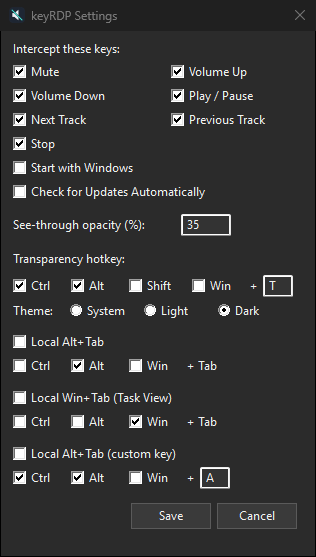
Mute, Volume Up, Volume Down, Play/Pause, Next, Previous and Stop act on your own computer instead of the remote one. Each key can be switched on or off separately. No change to the Remote Desktop client's keyboard settings.
Look behind the session
Press Ctrl+Alt+T and the window in front turns translucent, so you can read what is on your own desktop without leaving full screen. Press it again to go back. Opacity and key combination are yours to choose.
Local Alt+Tab, if you want it
Optional shortcuts for Alt+Tab, Win+Tab and a key of your own that switch between the windows on your own computer while the session has the keyboard.
How it works
keyRDP sits in the tray and watches the keyboard. It takes the keys you told it to keep, and passes everything else on untouched, so the Windows key, Alt+Tab and every shortcut still reach the remote session as before.
Try it, then paste a key
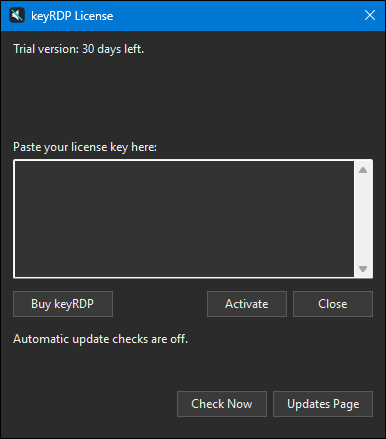
keyRDP runs with every feature for 30 days. When you buy, you receive a license key: open License from the tray menu, paste the key and press Activate. That is all; there is no account to create and nothing to sign in to.
The key is checked on your own computer, so keyRDP also works on machines without internet access.
Good to know before you buy
keyRDP has a few limits that come from how Windows works. They are listed here so you don't run into them as surprises.
Windows running as administrator
keyRDP runs as a normal program and needs no administrator rights. Because of that, Windows does not let it see keys typed into a program that runs as administrator, such as Task Manager, an admin PowerShell or command prompt, or an installer. While such a window has focus:
- media keys are not intercepted; they behave as if keyRDP weren't running,
- the see-through hotkey does nothing, and can't make such a window see-through,
- local window switching does nothing, and always skips those windows so it can't get stuck on one.
If you want keyRDP to cover those windows too, you can start it with "Run as administrator". Running as a normal user stays the default on purpose. In administrator mode:
- "Start with Windows" still starts keyRDP without administrator rights, so you start it by hand;
- starting keyRDP a second time normally opens Settings in the copy already running, but a normal start can't reach an administrator copy, and just closes.
Antivirus and company computers
keyRDP watches the keyboard with a standard Windows keyboard hook, and "Start with Windows" adds it to your personal startup list in the registry. Both are normal for a tool like this, but security software looks for exactly that combination. On a managed computer, Microsoft Defender or another endpoint protection product may flag keyRDP as "persistence" and quarantine it the moment "Start with Windows" is switched on.
- This is a detection of the behaviour, not of anything harmful in keyRDP.
- keyRDP is code-signed, which makes this much less likely, but can't rule it out: the decision is made by the security product and your organisation's policy.
- On a company computer, check with your IT department first, especially before enabling "Start with Windows". Only they can allow it there, for example by trusting the GuilderWorks publisher certificate.
- keyRDP works without "Start with Windows"; you then start it by hand after signing in.
Update check
keyRDP contacts guilderworks.com only to check for updates, and only if you allow it. It asks once, at first start, and you can change your answer in Settings.
- The check downloads a public list of versions and compares it on your computer. Nothing about you, your computer or your license key is sent. As with any web request, the server sees the IP address the request comes from.
- It runs at most once a day, and uses the proxy settings of Windows.
- keyRDP never downloads or installs anything by itself. When there is a newer version, it shows a notification and a tray menu item that opens the updates page.
- It tells apart a newer version your license covers, a security update, and a newer version that needs a renewed license.
- With the automatic check off, License > Check Now still checks when you ask.
- For a rollout, an administrator can answer the question in advance by setting the value
UpdateChecktoonoroffunderHKCU\Software\GuilderWorks\keyrdp.
Trial and license
keyRDP runs as a full trial for 30 days. After that it still starts and sits in the tray, but stops intercepting keys until you enter a license key (tray menu > License...).
- The license key is checked on your computer. keyRDP never contacts a server for it, so it works on machines without internet access.
- A license does not expire. It covers every version released up to its "updates until" date, one year after purchase. Newer versions need a renewed license; older ones keep working.
- A license is issued to a named person or company for a number of seats, and that name is shown in About.
- For a rollout to all users of a computer, an administrator can place the key as
license.keyinC:\ProgramData\GuilderWorks\keyrdp\, or next tokeyrdp.exe. - The trial counts calendar days from first use, per computer and user, and uninstalling does not reset it. If the computer's clock was once set far into the future while keyRDP ran, the trial may show as ended early; support can help with that.
Privacy
keyRDP contacts guilderworks.com only to check for updates, and only if you allow it. There is no account, no telemetry and no activation server. keyRDP does not record what you type: its log file notes only its own actions, such as a mute it carried out, and stays on your computer.
Details are in the privacy statement.
Price
One payment, no subscription. A license is per person, not per computer: use keyRDP on your laptop and your workstation alike.
1 user
All your own computers. Updates for 1 year included.
5 users
For a small team. Updates for 1 year included.
10 or more
Per user. Updates for 1 year included.
After the first year, keep using every version you received, or renew updates for €8 per user whenever you want a newer version. A renewal adds a year from your current end date, or from the day you renew if that date has passed, so renewing early loses nothing and skipping a year costs nothing extra.
Prices include VAT in the EU and the UK. Checkout shows your own currency: $15 per user in the US, plus any sales tax, and £13 in the UK. Volume and renewal prices follow the same pattern.
Not what you needed? Ask for a full refund within 14 days, no questions asked (refund policy). Our reseller Paddle, the Merchant of Record for all our orders, handles payment, invoicing and VAT. Purchases are under the License Agreement.
Buying and the free trial download open soon.
Requirements and support
Requirements
- Windows 10 or Windows 11, 64-bit.
- The built-in Remote Desktop client (
mstsc.exe) with its default keyboard settings. - No administrator rights, no driver, no service.
- A keyboard with media keys, for the media key part.
keyRDP 2027
Supports Windows 10 and Windows 11 as released up to 31 December 2027. Security fixes for this release line until 31 December 2031.
Your license includes 12 months of updates from the date of purchase. After that you keep every version you received, and security fixes for your last release line remain free until the date above. Later release lines require an optional renewal.
Questions or problems: support@guilderworks.com. All releases and security fixes are listed on the updates page.